Six small adjustments that will noticeably improve your smartphone photos.
By Josh Teder
Taking better photos on your smartphone is less about having the most expensive device and more about knowing a handful of settings most people never touch. As someone who reviews phones and needs to take a lot of photos for those reviews, here are my top tips for getting the most out of whatever camera system you’re carrying.
Tip 1: Shoot With More Megapixels
Why Your Phone Isn’t Using All Its Pixels
Most smartphones nowadays come with higher megapixel sensors, but shooting with all of those megapixels usually isn’t turned on by default. The reason comes down to a technology called pixel binning, where multiple pixels on the sensor are combined together to create one larger pixel. This helps improve low-light performance, but at the cost of resolution.
Because of that tradeoff, if you turn on full-res mode in low-light situations, you might end up with a noisier image. High-res photos also take up more storage space, so keep that in mind. But for most situations where the light is decent, it’s been worth it.
How to Enable High Resolution
The steps vary by platform, but here’s how it works across the three major ecosystems:
Platform
How to Enable High Resolution
Samsung
Camera Settings > select “High picture resolutions” to default to the highest available resolution
Select max resolution in the camera settings; the phone saves that preference automatically
iPhone
Settings > Camera > Preserve Settings > toggle on ProRAW and Resolution Control
Tip 1.5: Stop Pinching and Zooming
This one deserves its own entry. When you pinch and zoom in the camera app, all you’re actually doing is cropping into the image sensor and reducing resolution. The result is footage and photos that look blurry, distorted, and generally bad.
On Multi-Camera Phones
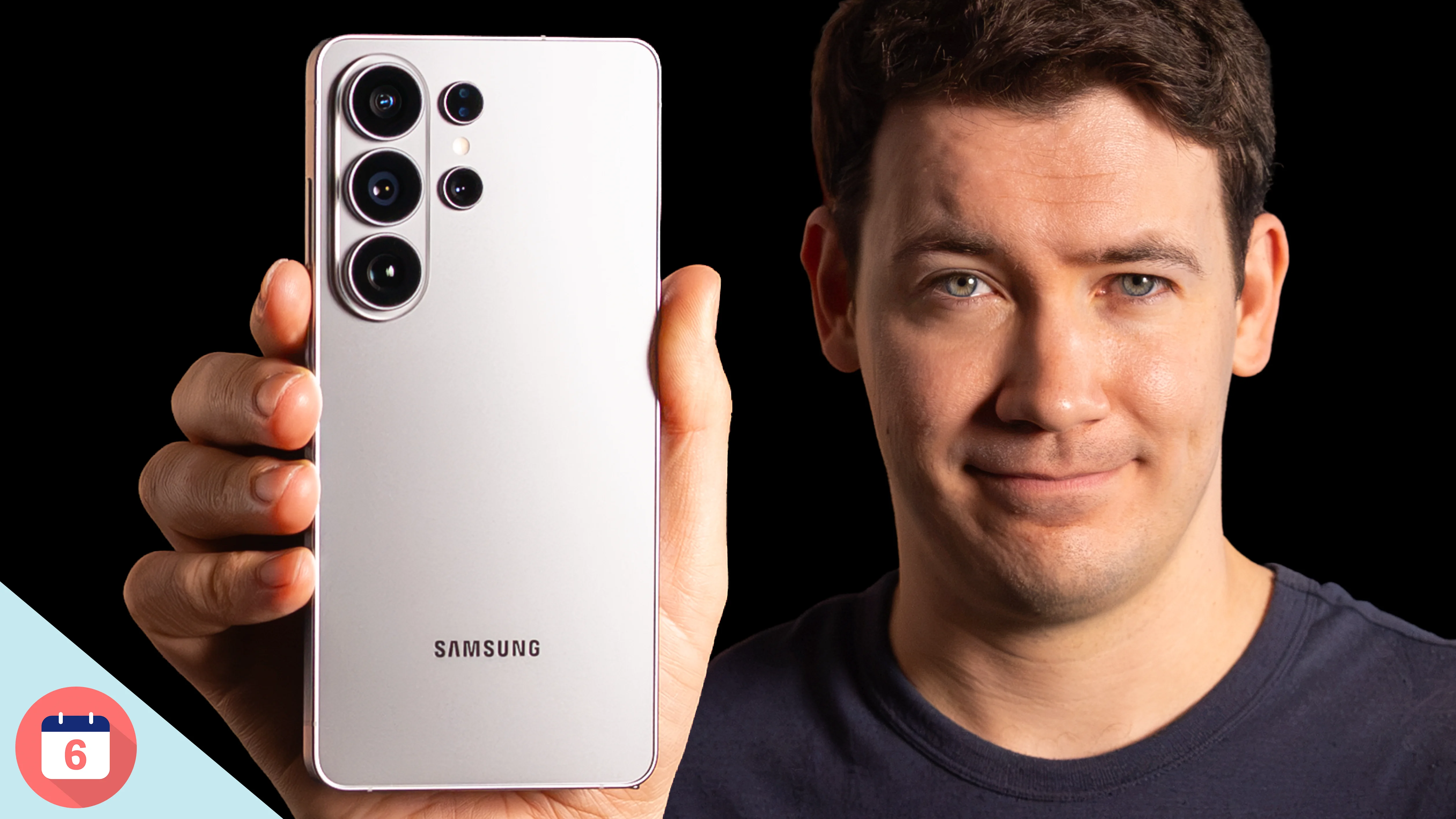
If you have a smartphone with multiple cameras, like the S26 Ultra or the Pro iPhones, use the zoom buttons at the bottom of the camera app to switch between lenses. Those buttons switch between the physical cameras on the back of your phone, which means you can zoom in and out without losing any resolution.
On the iPhone 17 Pro Max, for example, the rear cameras break down like this:
Zoom Level
Type
Notes
.5x ultrawide
Physical lens
Full resolution
1x
Main wide
Full resolution
4x
Telephoto
Full resolution
2x
Crop
Computational, not a physical lens
8x
Crop
Computational, not a physical lens
The 2x and 8x options are crops with some computation applied. They’re not going to match the quality of shooting with the physical cameras, but they’re still going to look a lot better than a pinch-and-zoom.
On Single-Camera Phones
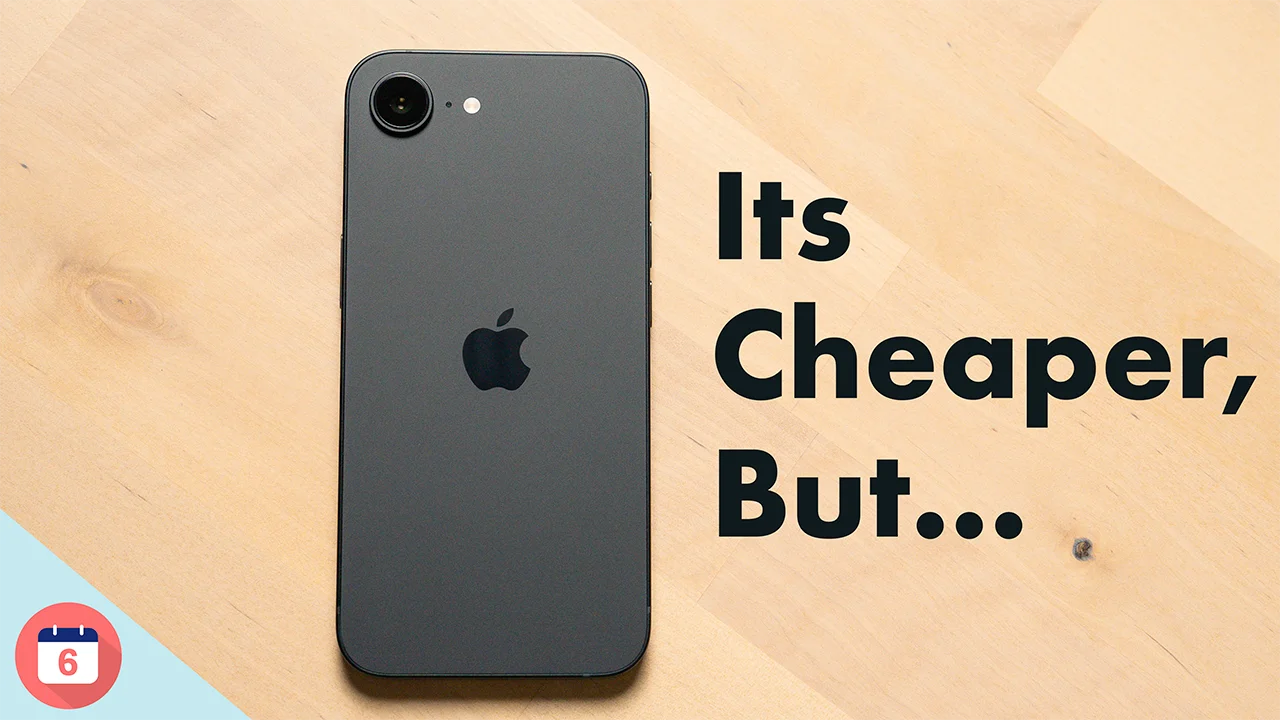
If your smartphone has just one camera on the back, like the iPhone Air, treat it the way you would a prime lens on a DSLR. To zoom, either move the camera closer or farther from your subject, or take the photo at the full 1x and crop it afterward in editing. That way, you preserve the full-resolution photo. If you pinch and zoom first and then take the shot, you’re stuck with whatever blurry version you just captured, and there’s no way to recover the full-res image.
Tip 2: Shoot in RAW
One of the biggest complaints I see and share about smartphone camera systems is that photos can sometimes look a bit off. Most modern phones use what’s called computational photography, where the chip processes the image and makes many decisions about how a photo should look. The results can be impressive, but smartphones can sometimes make wild choices with color and processing.
Shooting in RAW doesn’t let you undo all of the computational processing, but it saves more of the original photo data, which makes it far more likely you’ll be able to make the adjustments you actually want.
Shooting in RAW doesn’t reverse all of that processing, but it does at least make it more likely that you’ll be able to make the changes you want, because more of the photo data is preserved. Keep in mind that not all phones support RAW. Typically, the Pro tiers will, but not usually with the regular phone versions or phones like the iPhone Air.
When you shoot in RAW, you can edit the files in most major programs, including Adobe Lightroom, Snapseed on mobile, or Affinity Photo 2 and Photomator.
Tip 3: Switch from HEIF to JPEG
HEIF and JPEG are the two file formats in which photos are typically saved on most smartphones. HEIF takes up about half the storage space of a standard JPEG and can store more colors and better highlights. But in 2026, compatibility is still an issue.
Format
Storage Space
Color and Highlight Range
App and Web Compatibility
JPEG
Larger (roughly 2x HEIF)
Standard
Excellent, near-universal
HEIF
Smaller (roughly half of JPEG)
Better colors and highlights
Inconsistent; some apps and sites still struggle
Not all applications or websites work well with HEIF images, and in many cases, you’ll find it’s just easier to have the JPEG from the start than to constantly convert files after the fact. If you already have a backlog of HEIF images that need converting, you can use Apple’s Shortcuts app to handle this in bulk. I’ll leave a link to the shortcut I put together in the featured products section.
Tip 4: Use the Rule of Thirds
Almost every smartphone can be set up to display a grid, commonly called the rule of thirds, right inside the camera app. It’s a foundational composition technique in both photography and videography. The grid divides your frame into a 3×3 layout, which helps you avoid placing your subject directly in the dead center of the image. That centered placement can make photos feel stiff.
Moving your subject to a third of the way into the frame creates a more natural and balanced look. It also guides the viewer toward the most important part of the photo.
The rule of thirds can also help you align landscapes more intentionally. Figure out whether you want to place the horizon on the bottom third to emphasize the sky, or the top third to emphasize the foreground. Both work; the choice just depends on what you’re trying to say with the shot.
Tip 5: Think Twice Before Using Portrait Mode
Why Portrait Mode Falls Short
This one is slightly controversial, but here it is: I wouldn’t use portrait mode for photos you want to keep for a long time. If you’re just posting to social media, it’s probably fine. But for the photos you’ll want to look back on years from now, I’d skip it.
Even the best portrait modes out there have clear imperfections when you look closely. The edge detection around hair and complex outlines is almost never quite right, and none of them produce that perfect shallow depth of field you can get from a real camera lens. A shallow depth of field means only a narrow plane of your image is in sharp focus. In a well-lit portrait shot with a real lens, the camera focuses on the subject’s eyes and everything in front of and behind that focal plane falls off into a blur. The aesthetic quality of that blur is what’s called bokeh, and it’s very hard to fake convincingly on a phone.
A Better Approach
A much better way to get the look you’re after on a smartphone is to get close to your subject, shoot with the normal lens, and then use a tool like Google Photos to add the blur in post. That way, you get the portrait-mode result you want, but you also have a clean version of the photo with no artificial depth of field baked in.
Most Samsung, Google, and Apple phones now have ways to capture depth information and let you apply or remove blurs after the fact. On the iPhone specifically, you can go back and remove the blur entirely from a portrait photo, which is a useful safety net. It’s worth noting that this feature isn’t universal across all phones. And interestingly, the iPhone Air appears to be the first iPhone with a single rear camera to also support it.
Quick Recap
To bring it all together: shoot in high resolution and make sure your phone is actually set to use it. Don’t pinch and zoom, especially during video. Shoot in RAW when your phone supports it. Use JPEG for better compatibility across apps and platforms. Turn on the rule of thirds grid in your camera settings. And for photos you plan to keep long-term, consider skipping portrait mode.
Follow these steps consistently, and you’ll be getting noticeably better shots out of whatever phone you’re carrying.
JPG vs. HEIC storage on your phone
Watch photos accumulate — same shots, different formats
JPEG
Joint Photographic Experts Group ~1990s standard
Storage used
0 MB128 GB
Photos saved0
Avg file size—
HEIC
High Efficiency Image Container ~2017+ Apple default