reMarkable Paper Pro Move Review – 6 Months Later
Is the smaller size really worth it?
By Josh Teder
It’s been 6 months since reMarkable sent me the Paper Pro Move, and I want to take you through the things I like about it, the downsides, and when it actually makes sense to choose the Move over the regular Paper Pro, which has become my favorite digital note-taking device.
The Case for a Smaller reMarkable
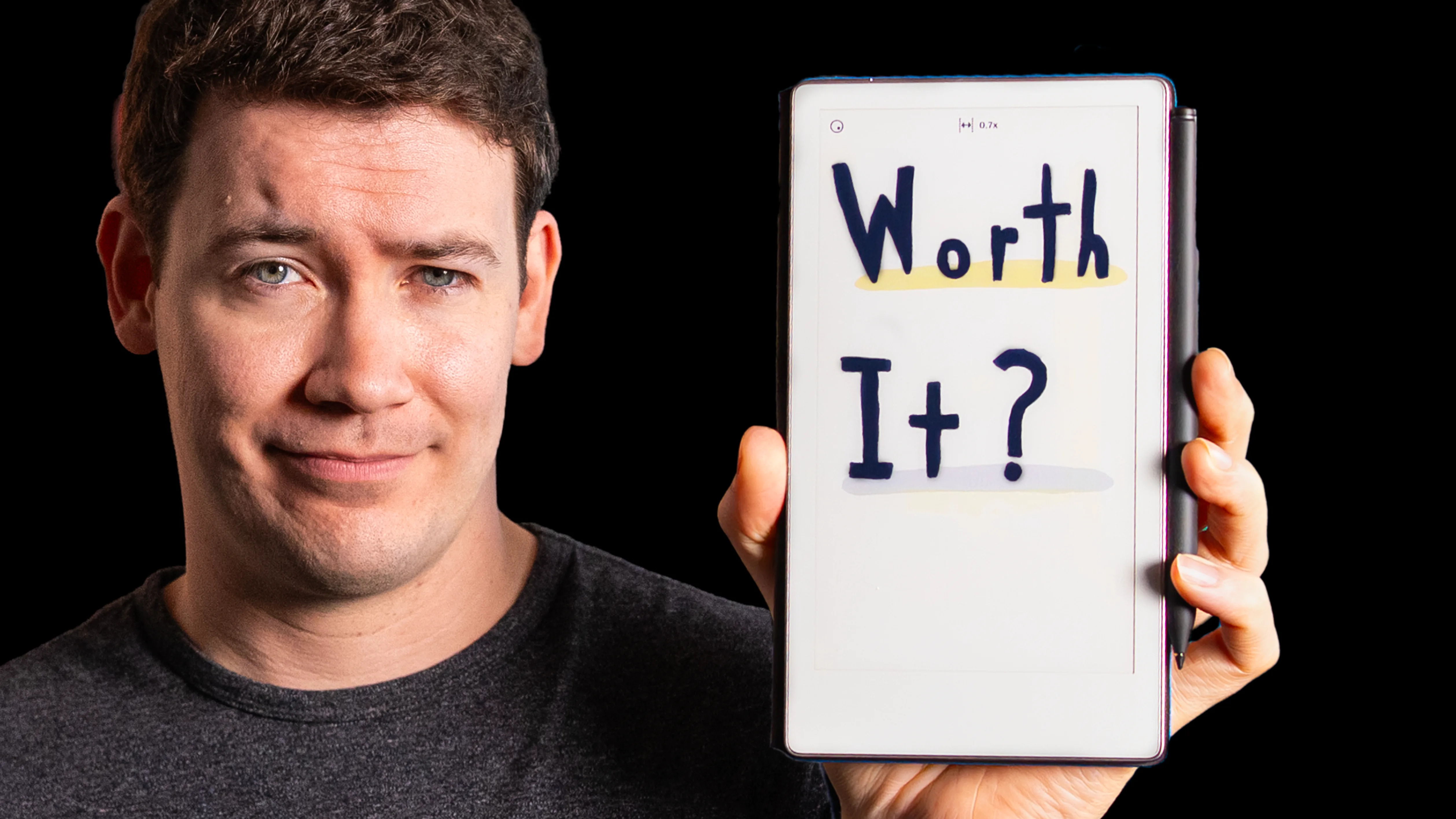
The biggest draw to the Paper Pro Move is right there in the name. It’s designed to be a smaller, more portable version of the Paper Pro. This is the device you take to a client meeting, a coffee shop, or on a plane when you’ve got limited writing space.
Even in my studio, the Paper Pro takes up quite a bit of real estate on my desk. And given the amount of tech I have at any given moment, I’m usually a bit short on desk space. So it’s really nice how this can just fit right next to my mouse and slot into my space without taking up too much room.
The Display: Gallery 3 Color E-Ink
What makes this device really shine is the display. It’s quick for an e-ink display in terms of getting around the interface, scrolling, and navigating. And like the Paper Pro, it uses a Gallery 3 e-ink screen.
Unlike Kaleido technology, which Kindle uses for their Colorsoft line, where a color filter is placed over a traditional e-ink display to achieve different colors at the cost of resolution, Gallery 3 uses four different colored ink particles (cyan, magenta, yellow, and white) to generate a wide range of colors at every single pixel.
With these additional pigments, you do generally get more display refreshes, and things will feel a bit slower than with the Kaleido experience. But I still slightly prefer the look of this display over the Colorsoft. It just looks a bit crisper. Though blacks don’t have quite as much contrast as they do on the reMarkable 2, which uses a more traditional black-and-white e-ink display.
Here’s why color matters so much on a device like this: unlike with traditional pen and paper, you don’t have to carry around a bunch of separate notebooks, colored pens, and highlighters. You just carry around this one device and this one marker. And like the Paper Pro, the Move also has a built-in backlight, so you can use it in dim situations.
Writing Experience
The writing experience is exactly like it is on the Paper Pro, just on a smaller screen. The marker glides more than the reMarkable 2’s does. Some people will prefer that; some won’t. I go back and forth on which I feel I prefer, honestly.
“Your handwriting looks like it does when writing with a pencil on paper. And the sound you get when writing is just so pleasing.”
But the writing feel and the display are only half of the experience, because the software matters a lot as well.
Software, Organization, and Gestures
First, it’s distraction-free. There are no notifications, no messages, no social feeds to get drawn into. It’s as distraction-free as a clean sheet of paper, but with the real benefits of being digital.
Your notes get backed up, and the organizational system is simple yet effective. You have Quick Sheets, where you can start taking a note and worry about organizing it into a notebook later. Then you have notebooks (collections of notes around a particular idea or theme), and folders to group related notebooks together. There are also tags you can apply to help you find things more quickly.
The device is encrypted both on-device and in reMarkable Cloud, which is great for business users. There’s also single sign-on support for your company, which is another nice touch.
Gestures are something I use a lot. To get to my most recently opened notebooks or the ones I’ve favorited, I can swipe down with two fingers from the top. Swipe up from the bottom to easily move between pages. The writing tools themselves are simple but effective, though there’s only one pen tool slot in the Move’s sidebar, down from the two you get on the Paper Pro, which makes switching between tools a bit more annoying.
The select-to-erase feature often works better than the pen’s own eraser in my experience, so I’m glad that’s there. And they do a great job when you use the select tool: it lets you know the selection is now in the clipboard, and that bar at the bottom stays there until you clear it, so you can easily move and paste something across several different notebooks.
Layers are another really useful software feature. This allows me to add color to website mockups, for example. I can sketch out the overall outline in one layer and then shade in color or highlight all of the clickable aspects of a design in another layer.
You can also toggle on “Enable Shapes” in your page settings to draw any basic shape and have the software straighten it out for you. That works most of the time in my experience, though I do wish you could also just have pre-selected shapes you could drag out. You can easily switch templates inside notebooks, something you obviously can’t do with a physical notebook.
One feature that’s especially important on a device with more limited screen real estate is the ability to keep scrolling down the page to get more room to write, without having to add an additional page. You can also add margin space by dragging two fingers to the right or left, and pinch to zoom in or out with two fingers.
Handwriting search is super useful and works relatively well in my experience. You can also convert handwritten notes to text using optical character recognition. For my messy handwriting, it was about 85% of the way there, but I was able to take the converted notes and put them into something like Claude, which got me to about 99.5% of the way there. This is something LLM technology is very good at because it can figure out contextually what a word should be based on the surrounding words.
Battery life has been quite decent as well. It’ll last around two weeks of light to moderate use, and standby battery has been really solid. If you only use it sporadically, you’re not going to find yourself needing to charge it all that often.
reMarkable Connect: What Do You Actually Need?
Let’s talk about reMarkable Connect, reMarkable’s subscription service. Full disclosure: I now receive this from reMarkable at no cost, but I did pay for it myself before reMarkable sent me the Paper Pro and Paper Pro Move.
Without a subscription, you still get handwriting conversion, which is actually kind of surprising. You also get access to third-party cloud storage services like Google Drive, Dropbox, and OneDrive; the ability to read and organize your notes in the reMarkable app on mobile and desktop; and limited cloud storage and sync. The catch with limited sync is that only notebooks edited in the last 50 days will be synced to the cloud. If you make an edit to a notebook that’s gone stale beyond that 50-day window, those changes will only be saved on your tablet locally and will not be synced to the cloud.
One workaround: duplicate the stale notebook and start editing the new copy instead, and it will sync to the cloud.
One important thing to note about reMarkable Cloud is that it acts more as a sync service than a true backup solution. If you accidentally delete a notebook from the cloud, you might be able to recover it from the device’s trash, but if you can’t, it’s gone. There is a way to download archives of your notebooks in their editable, freeform format. I’ve left a link to documentation on how to do that in the learn more section of this post.
With the Connect subscription, you get a few notable additions. First, reMarkable Methods templates, which are exclusive to subscribers. You also get the ability to convert Word and Google Doc files into freeform reMarkable notebooks. Before this feature, you could bring those files into reMarkable to mark them up, but only as a PDF. Now they can be converted to a native freeform notebook, so things like layers and text editing all work. This came via a recent software update. reMarkable pushes one about every few months or so, and they often include some genuinely major upgrades.
A few other things included with the subscription: the ability to send notes and sketches via Slack, and the ability to write and edit notes on your computer or smartphone via the reMarkable apps. The last one was a bigger deal to me until I switched most of my note-taking to Notion. I mainly use the reMarkable apps to drag files in, sign or mark them up on the tablet, and then export them out of the app, or just to read my notes on my phone when I’m on the go.
A couple of features worth mentioning that I haven’t used as much: screen share lets you present what you’re writing or sketching directly to your computer, though you’ll need to set this up with the correct permissions on your Mac or PC before you can use it on a Zoom or Google Meet call. Sending documents via email is probably a great feature for companies or people on the go, but it’s not something I’ve personally used. For exporting files, I typically just use the reMarkable Desktop app.
Downsides
The first downside is something I run into every time I switch between these two devices. I don’t care for how notes look when you start them on the Paper Pro Move and then open them on the regular Paper Pro. The text and handwriting just sits in a smaller area on the larger screen. I’m not sure there’s a way to fix it, but I do wish it could expand to the larger canvas and move the handwriting onto the correct lines. The same thing happens in reverse: if you open something on the Move that was originally created on the Paper Pro, it can look super small. Yes, you can pinch to resize, but then things can get cut off. Rotating to landscape does get you back to that normal scale, but the tiny text in portrait mode is just a reality you’d have to accept if you’re switching back and forth between the two devices.
Another downside is no customizability when it comes to the toolbar. I’d love the ability to customize and reorder the writing toolbar depending on the workflow I’m in. If I’m mainly writing and highlighting, it would be great to have a few more colors quickly accessible on the side, plus two pen slots like you get on the regular Paper Pro. Amazon seems to have figured out a way to make fast color switching a bit better than reMarkable with their new Kindle Scribe Colorsoft.
“At $449 for a smaller version of the Paper Pro, the price is going to be steep for many people. It might even feel like a worse deal compared to just getting the Paper Pro at $629, especially if you’re new to reMarkable.”
A couple of smaller downsides: waking from sleep when flipping open the cover has recently seemed to take just a tad too long compared to when I originally got the Paper Pro Move. I’ve also started noticing this on the Paper Pro, so I think it may have been introduced with a recent software update. Hopefully that’ll get fixed, because it wasn’t an issue a couple of months ago.
There’s also no fingerprint sensor in the power button. It’s password only for authentication. And it doesn’t come with any water resistance rating, which for a product designed to be more on-the-go would have been nice to see.
On the ebook front, you can only read non-DRM ebooks. DRM stands for digital rights management, which means realistically you’re likely going to want a separate device for reading most ebooks, since the majority of ebooks today still use some type of DRM technology. That is an advantage something like the Kindle Scribe or Scribe Colorsoft has over the reMarkable, though those devices have their own note-taking downsides, so it’s not a perfect solution on either end. For me, the ebook thing is more of a nice-to-have with the larger reMarkable, but would have really been nice on the Move given its size is pretty similar to a Kindle Paperwhite.
That said, do I really have a problem having a single-purpose device for reading books and a separate one for note-taking? From a usability standpoint, not really. From a cost standpoint, it’s more of an issue.
Should You Buy the reMarkable Paper Pro Move?
Yes, I recommend the Paper Pro Move. Just like the Paper Pro, it delivers a fantastic writing experience in a smaller form factor.
But the tricky thing with this product is I think some people might see the lower price relative to the Paper Pro and opt for the Move as their first reMarkable device, and I’d actually steer people away from that decision. This product is really for people who already own a reMarkable device and want a smaller version of what they already have.
If you’re new to the reMarkable brand, the Paper Pro is the one I’d point you towards. That’s the device I use roughly 85% of the time, since I mainly work from home and I really value that larger writing surface for ideation. For things like marking up documents, writing, and design mockups, the regular Paper Pro is just going to be the better choice because of that extra screen real estate.
And even though it’s considerably less expensive, I can’t really recommend the reMarkable 2 at this point. That product has been out for a while and really needs to be updated with a faster processor and e-ink display, plus a backlight.
The only people I’d confidently recommend the Paper Pro Move to are those who absolutely know they want the smaller form factor to fit in a purse or carry bag, know they’ll regularly be in situations with limited writing space, want to write while standing up, or just don’t want to lug around the size of the Paper Pro. For those use cases, this would be a perfect fit.
Check out our shop to see current prices and deals on reMarkable products.