Featured Products
If you buy something from a link, 6 Months Later may earn a commission. See our ethics policy.

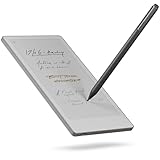


Learn More
reMarkable Connect subscription
Backing up your reMarkable data – reMarkable Guide
Why a paper tablet is better for your eyes – from reMarkable
Related Videos
reMarkable 2 Review – 6 Months Later
6 Months Later Reviews Playlist:
reMarkable Paper Pro Review – 6 Months Later
Is a color display really worth it?
By Josh Teder
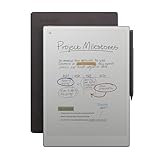
The reMarkable Paper Pro is a follow-up to the reMarkable 2 e-ink digital notebook, and it improves on almost every part of its predecessor’s experience. After 6 months of using the one that reMarkable sent me, I have to say this is just one of those products after you use over the long term where you’re just like, “Wow, they did a very good job at executing the product they set out to make.”
But is it really worth getting over reMarkable’s other offerings? First, let me take you through what makes this device so remarkable.
Performance and Speed Improvements
The first thing is its speed. reMarkable put a new chip in the Paper Pro, as well as new display technology and a new Marker and Marker Plus for it that uses active stylus technology with a built-in battery. Altogether, this makes moving around pages, navigating, and writing noticeably faster.
Writing Experience
The marker’s writing experience is also different from the reMarkable 2, which feels more like a pen writing on soft paper, whereas the Paper Pro feels a bit more like writing with a pencil. It has more glide and there’s a bit less resistance, but it still retains that great sound.
At first, I didn’t really like the writing feel of the Paper Pro compared to the reMarkable 2. But as the weeks went on, I did find that I gravitated more and more to its writing style over the reMarkable 2’s.
Display Technology and Color Capabilities
The second thing that makes the reMarkable Paper Pro such an incredible device is its display. Not only is it a bit larger, giving you more room to write than the reMarkable 2. Additionally, this tablet features a front light, allowing you to continue writing and reading in dim situations. They made it a very dim light by default, so it doesn’t cause eye strain. However, they later added a way to increase the brightness in settings if you found it too dim, although that will decrease your battery life.
This display is an e-ink Gallery 3 display, meaning it can display full color. Unlike devices that use e-ink Kaleido color technology, like the Kindle Colorsoft, Gallery 3 uses four colored ink particles, cyan, magenta, yellow, and white instead of black and white with a filter like Kaleido. This means colors look far more vibrant and the resolution stays sharp at 229 PPI.
Display Trade-offs
Now, normal black and white e-ink uses black and white ink particles, but with the addition of more particles. That does mean you’ll see more refreshes when working with color, but 6 months later, I did end up getting used to it, though some might be more bothered by it.
Now, another thing you’ll notice with this display is that blacks don’t quite have as much contrast to them. That’s because with Gallery 3, there is actually no black ink particles in this display like there is on a black and white e-ink display.
Real-World Color Benefits
Now, has that trade-off been worth it 6 months later? Yes. I’ve actually been surprised how quickly I was able to benefit from adding color to my document workflows. For example, now I can quickly color code my shot lists by shot type, allowing me to get through my B-roll shoots faster.
And for reading documents, highlighting, and drawing diagrams or mock-ups, having color just gives you this whole other dimension to be able to convey information that you don’t get with the reMarkable 2. And unlike doing this with traditional pen and paper, you don’t have to carry around a bunch of separate notebooks or colored pens and highlighters. You just carry around this one device.
Personal Workflow Integration
I’ve actually ended up moving much of the way I run my business to it. From ideation, taking meeting notes to mocking up new website designs, to-do lists, shot lists, thumbnail sketches, and more. And part of the reason I did that was because of the third highlight with this device, its software.
Software Excellence
The reMarkable Paper Pro delivers the best digital writing experience I’ve ever had on any device, thanks to its software. And that’s not because its software can do everything under the sun. It’s actually pretty simple, but it’s exactly for that reason why I’ve gravitated towards using it myself.
The entire reMarkable experience feels incredibly well thought out. From its organization and search capabilities to the ability to move pages around. Your notes are organized into notebooks, which can then be organized into folders.
Quick Notes and Navigation
Need to take a note, but you don’t have a notebook for it yet? No problem. reMarkable created Quick Sheets, which you can create from the home screen to jot down something quickly and then organize it into a notebook or folder later on.
I also love how easy it is to get to things no matter where I am in the Paper Pro thanks to gestures. To get to my most recent stuff that I had open or notebooks that I favored, I can simply swipe down with two fingers from the top. I can swipe down with one finger when in a notebook to get back home.
Writing Tools and Features
And then there are, of course, writing tools themselves, which are simple but effective. You can have two pen tools to quickly switch between. They also do a great job when you select something with the select tool, letting you know that it’s now in reMarkable’s clipboard. And the bar at the bottom will stay there until you want to clear your selection out of the clipboard, so you can easily move and paste something into one or several different notebooks.
Advanced Features: Layers and Shapes
Another software feature that’s quite useful is the inclusion of layers. This allows me to add color to my website mockups. For example, I can sketch the overall outline in one layer and then shade in some color or highlight all of the clickable aspects of the design in another.
You can also toggle on enable shapes on your page settings to draw any basic shape you want like a square, circle, triangle, which most of the time works. Though, I do wish there were pre-made shapes that you could simply drag out onto the page as well.
Template Flexibility and Writing Space
Another well-thought-out part of their software is that you can also easily switch templates inside notebooks, something you can’t do with a physical notebook.
Another great writing feature reMarkable has in its software is the ability to just scroll down for more room to write without having to add an additional page to your notebook. You can also get more space to write in the margin by simply dragging your two fingers to the right or left. You can also pinch to zoom in on something that you’re drawing, which other devices like the Kindle Scribe don’t let you do in notebooks.
Desktop and Mobile Apps
Another thing that helps make the Paper Pro software great is the reMarkable desktop and mobile apps. They make it easy to view your notes when you’re on another device, export your notebooks into a PDF or other format, and make it easy to drag a file into the app on desktop, like a contract, open it up on reMarkable to sign or markup, and then export the signed contract back to your computer.
You can transfer via USB-C as well, but that’s something I’ve never bothered with because the apps make it so easy. You can also now scan documents with the mobile app, which is a feature they added via a software update.
Storage and Cloud Integration
Now, the Paper Pro technically comes with 64 gigabytes of storage, but in my real-world use, it’s just under 50 gigs worth of local storage, which is plenty for storing thousands of documents. And of course, you can utilize cloud storage options as well.
There’s a reMarkable Google Drive, Dropbox, and OneDrive integration that allows you to pull files from your cloud storage, download them to the Paper Pro to mark up, and then export back to your cloud storage provider as a PDF.
File Format Limitations
One thing to be made aware of, though, is that reMarkable’s notebooks are in a proprietary RM format. This means when you export them to Google Drive, for example, they’ll actually be converted to a PDF, and they don’t keep all of your editable layers, pen strokes, etc. So, this option is good for just backing up your notebooks in general, but not if you want them to stay in an editable format.
Now, there is a way that you can download archives of your notebooks in their editable format, and I’ve left the documentation on how to do that in the learn more section of the blog post for this review. Link to that in the description and pinned comment.
reMarkable Connect Subscription
Another feature that makes reMarkable software so good and easy to use is their reMarkable Connect subscription, which keeps all of your notebooks synced to the cloud and synced across your devices. It’s not a required subscription and you can absolutely use your reMarkable without it, but I did end up purchasing it with my reMarkable 2, though I then got it for free via the Paper Pro that reMarkable sent me.
Here in the US, it costs around $30 a year annually or $3 a month, which gets you unlimited storage, a three-year extended warranty, the ability to edit docs on the reMarkable apps, and you also get access to reMarkable Methods templates, which are a new library of templates that you can download and use on your reMarkable tablet. I’ve actually found these quite useful. There are several templates I now use to organize things like my meeting notes and thoughts about running my business.
Subscription Limitations
Now, what happens if you don’t buy a Connect subscription? Only files used and synced in the last 50 days will continue to be synced via reMarkable’s cloud. If you make a change to your notebook or start writing in it again after that 50-day period, any changes you make will only be saved on your tablet locally and will not be synced to the cloud. One way around that, though, is to just duplicate the stale notebook and start editing the newer one.
Software Updates
The last thing that’s been great about the software is the consistent updates that have rolled out to my Paper Pro in the past 6 months, enabling new features and fixes like the extra brightness option.
Build Quality and Design
Now, the fourth thing that makes this a great product is the build quality. It is a very nicely designed and built device. The bezel has been reduced on the side. I love the warm tone metal used on the sides and back. The pen tip holder is nicely designed with the Paper Pro, though I’m not sure opting for plastic was more sustainable than using the glass holder on the reMarkable 2.
The eraser feels a bit better on the Paper Pro versus the reMarkable 2 because of that greater resistance you feel, and the accessories are better, too.
Accessories: Type Folio and Book Folio
The Type Folio materials are noticeably higher quality than those on the reMarkable 2. The keyboard is also more of a full keyboard and has a new editing button, which mainly allows you to use the marker to select and edit text.
The Book Folio also feels really nice and premium with the leather cover version that I got. It’s also noticeably lighter when using with the Paper Pro versus when you use the Type Folio case.
Features I Didn’t Use Much
So, what features have I not found myself using with the Paper Pro over the past 6 months?
First is the Type Folio keyboard case. My initial use of this accessory was a bit more aspirational than I intended. While it provided a distraction-free writing experience where you don’t have access to a web browser, notifications, or your email client because that’s a main selling point for reMarkable. But for my use case, having access to a web browser to look up information, having Grammarly there, the ability to indent multiple times in my outlines, etc., I found I still really needed all of those capabilities.
So, I found my use of the Type Folio really dwindled to the point where I don’t use it at all. But your use case, like writing a novel, typing into a journal, etc., those are all use cases I could see this accessory being quite useful for.
Handwriting Text Conversion
Another feature I didn’t use that much was the handwriting text conversion. This was pretty accurate in my experience when I did use it. And I really like that reMarkable creates a new page with the typed text and doesn’t destroy your handwritten one in case there were errors during translation. Though, note it does require an internet connection to work.
Downsides and Limitations
Now, let’s talk about some of the downsides I’ve encountered with the Paper Pro over the past 6 months.
First, you can import PDFs into the Paper Pro via the mobile app, but there’s no one-tap share to reMarkable integration from your phone’s share sheet, which seems like a pretty basic feature that should be there.
I also wish you could choose your own color for pens and highlighters, etc. As of this recording, you’re limited to the preset palette in the software. I wish there was a way to start setup via the reMarkable phone app first so it could save and bring over previous settings like the Wi-Fi password so you don’t have to type that in every time you set up one of these devices.
Battery Life Concerns
Battery life is another one. I just wish it would last a bit longer. I do get about 2 weeks on a charge, which is what reMarkable promises, but I was definitely a bit surprised. It doesn’t last as long as my Kindle Scribe, which can last me one or two months.
Another downside is the marker’s internal battery. There’s no easy way for users to replace its battery. Same thing for the Paper Pro’s battery, by the way. And I don’t really understand this move since there’s no IP rating for this device at all, which is usually the excuse manufacturers make for not having user serviceable designs. This makes it so you’re entirely reliant on reMarkable support to replace the marker and Paper Pro’s battery when they eventually die.
Security Features
Another downside is that there’s no fingerprint sensor for authentication. You have to use a password unlock to unlock your device if you want to lock it down. And I really wish for the price they would have included that feature.
Pricing and Value
Speaking of which, the price. As of this recording, here in the US, the Paper Pro starts at $629. Bundled with a Book Folio and Marker Plus, that’ll set you back $799 or $749 with the Folio, but without the Marker Plus. And you can check the purchase link in the description and pinned comment to see if any sales are going on. Comparison shop between multiple retailers or check out reMarkable’s refurbished store, which can help you save on their devices. And that’s what I used when I bought my reMarkable 2.
Now, the retail price for the Paper Pro is pretty expensive for the basic things this device can do like ideation, notes, reading, and marking up documents. But it’s also at the time of recording the only major device in this category out there using e-ink’s Gallery 3 technology which does make it pretty unique.
Who Should Buy the Paper Pro?
So with that in mind, do I recommend the reMarkable Paper Pro? In general, yes. For $200 more than the reMarkable 2, it still improves upon basically everything the reMarkable 2 can do. And I do think it is worth getting over the reMarkable 2 generally if you can swing it.
Now, if you have a reMarkable 2 already, should you upgrade to the Paper Pro? In general, I actually think yes. Like if you can swing it and you won’t bat an eye trading in your device or selling your reMarkable 2 and the cost difference between that and getting the Paper Pro, I do think getting the Paper Pro and upgrading to it is worth it just because of that faster refresh rate and larger screen size alone, never mind the color, though I have really enjoyed having that as well.
Paper Pro Move Comparison
But what about reMarkable’s new Paper Pro Move? While I’ve only had it for a few days, reMarkable shipped it to me as well. So far, my impressions of this device are it’s really good for taking quick notes on the go or to replace sticky notes or a small notepad on your desk. But for long periods of ideation, drawing things out, etc., the Paper Pro is really going to be better for those tasks.
vs. Competition
Now, if you’ve never had a reMarkable device before, why go with the Paper Pro over its competition from others like Supernote Books, and maybe even the Kindle Scribe? In general, I think you would do that because of reMarkable’s excellent distraction-free software. The Connect subscription makes it pretty easy to sync everything with the cloud at a pretty low cost. You get a color e-ink display that actually looks decent features like infinite canvas, a fantastic writing experience with really low latency, and a great full-sized keyboard on the Type Folio.
But if you wanted an e-ink tablet that could run certain apps or even full Android like with the Books, that’s where I don’t think the reMarkable Paper Pro would be the correct option for you.
Final Thoughts
So, those have been my thoughts on the reMarkable Paper Pro. But now it’s your turn. Let me know what you think of it if you have one, or even if you don’t, let me know what you think in the comments. And to see more of my reviews of e-ink devices and tablets like the reMarkable 2 or iPads, you can click here to get to those. Or click here to see more of my popular reviews like the ones I did on the Meta Quest 3, Kindle Scribe, and Apple Vision Pro. And to see all of the products I recommend at any time, you can do that by visiting 6monthslater.net/shop or check out the featured products from this review.
For 6 Months Later, I’m Josh Teder. Thanks for watching.