Featured Products
If you buy something from a link, 6 Months Later may earn a commission. See our ethics policy.






Learn More
e-Readers and Tablets
Kindle Paperwhite (2024) Review
6 Months Later Reviews
by Josh Teder
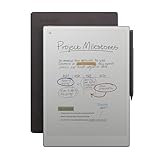
It’s been 6 months since I bought the 2024 Kindle Scribe. Do I think you should pick this device over its competition? And is it really worth that $399 price? After 6 months, I think I know the answer.
Display Quality and Performance
The first thing that continues to stand out with this device is its display. Amazon offers one of the best-looking E-Ink displays on the market thanks to its 300 PPI pixel density, which not only makes text look crisp but also your handwriting. And its auto-brightness feature, which works well, always ensures you’ll be able to see the screen in any lighting environment. And yes, contrary to what some people out there say, the front light is flicker-free. I checked this with my camera using a high frame rate, and I couldn’t detect any flickering.
Handwriting Notes on Books
The next thing that really stood out while using this device is handwriting notes on books. This is a new feature that was launched with this device, but it also rolled out to the previous Kindle Scribe. Now, it’s not perfect. It doesn’t allow you to write wherever you want, like a physical book. But given the technical challenges of figuring out how to allow you to write where you want while maintaining the ability to resize your Kindle book’s text, typeface, margin size, etc., I think the solution Amazon landed on here was probably the best one.
So, how does it work? Well, you can take your pen and directly underline something, and then it gets underlined. If you use the button on the premium pen to trigger something like the highlighter or select it from the writing menu, the pen will highlight the text you want to highlight. I do prefer using the pen to highlight and underline versus my finger.
Now, when you want to write a note, you can actually just start writing on the page wherever you want, even over the text, which is actually quite nice for just jotting down a quick thought. When you do this, this will create what’s called an active canvas. Once you’re done writing your note and you save it, your active canvas will embed wherever you wrote directly between the text of the book.
Overall, I think the system is definitely an improvement over the old way handwritten notes worked, where you could handwrite or type out a note and save it, and then it would leave a little note icon near the text. The new active canvas keeps your handwriting visible, which is great for when you go back and reread something or want to edit or add to your note without the extra step of selecting a little note icon to see what you wrote.
Now, on Kindle notes, as well as what you write in the active canvas, all of that is available in your notes section in the top book toolbar at the top, where you can scroll through and search through your notes. Notes and highlights are also made available via the Kindle mobile app. Though via the mobile app, you can only view your annotations—so think your underlines, highlights, and your typed-out notes. But your handwritten notes will not appear there, which is annoying.
But what about writing in the margin? Well, they didn’t implement the nice two-finger gesture to pull out and see the margin as Remarkable has in their operating system. Amazon did add a way to sort of write in the margin. There’s a new button you can tap at the top left or right corner where you can write in the margin, and whatever you write will be saved as an active canvas in the margin. Because the margin view can be hidden, each note you write in the margin view will also add a little note icon next to the book text across from your margin note. And when you tap that, it’ll oddly bring up the handwritten notes view, not the margin view as you might expect, which is something I think Amazon could tweak a bit. And no, you cannot just write in the margin of the actual book. It’ll look like you can for a second before that handwriting gets turned into an active canvas that’ll move directly into the text.
Writing Experience and Features
Now, what about the handwritten note-taking experience? Well, it’s basically exactly the same as it was on the previous Kindle Scribe. It’s easy to take handwritten notes, jot down thoughts, drawings, etc. It’s very basic compared to something like the Remarkable 2, which I’ve reviewed, and I’ve got an upcoming review of the Remarkable Paper Pro tablet, so make sure you’re subscribed to the channel if you want to see that.
The Kindle Scribe is missing features such as two-finger scrolling to reveal more margin or an infinite canvas where you can just scroll the page down to continue writing without needing to add another page to the notebook, as well as additional options for pens, layers, and other features like being able to pinch and zoom when drawing.
Overall, I still prefer writing on devices like the Scribe versus with physical pen and paper because notebooks here are backed up to the cloud, and my notebooks take up less physical space than their analog counterparts would. While you can’t sync with storage services like OneNote, Dropbox, or Google Drive, your notebooks are automatically backed up to Amazon’s cloud, and there’s no storage limit. Books you buy via Amazon do not count towards that cloud storage limit either.
The writing feel of the Scribe is very good, though I wish the gap between the display and where the pen touches was slimmed down like it is on the Remarkable. However, that would likely affect Amazon’s light guide technology, which is different from a backlight and shines light down onto the surface of the display rather than from behind it at you.
And speaking of reading and writing content, making sure you have access to what you want on the web securely wherever you are in the world has become more important than ever. And that’s where NordVPN comes in, who sponsored this video. I’ve been using NordVPN not just for security, but to ensure I have access to all of the content I want on my devices, no matter what state or country I’m in. With over 6,300 servers in 111 countries, I can connect to virtually anywhere in the world. NordVPN ensures I never hit those frustrating “content not available in your region” messages again. And what sets NordVPN apart from others is their next-generation encryption and their strict no-logs policy. So, my browsing activity, IP address, and personal data stay completely private. I can protect up to 10 devices with a single account, which is perfect for somebody like me. Whether you’re working remotely, streaming content, or you just want to browse privately, NordVPN offers the protection you need at an affordable price. You can get four months extra on a 2-year plan by using the link in the description below or by going to nordvpn.com/6months.
It’s risk-free with Nord’s 30-day money-back guarantee. So, you can try it for yourself and see why millions trust NordVPN for their online security.
Battery Life and Build Quality
Another highlight is the OS. The Kindle Scribe, like other writing tablets, features a distraction-free interface, meaning it doesn’t run Android. There are no notifications or distracting apps to pull your focus away from what you’re trying to work on or read. And unlike some of its competition, including tablets, the Kindle Scribe, like its predecessor, can last for weeks and months on a single charge. I’ve been able to push mine to about two to three months on a charge with daily use, which has been nothing short of excellent.
The premium pen has the same grippy feel as the first one with an improved eraser that feels more like an eraser on a pencil compared to the harder plastic one used in the previous generation of the Kindle Scribe. I much prefer the newer version.
If you already have a Kindle or Amazon account, setup is fast. It’ll automatically connect to Wi-Fi that’s been saved to your Amazon account, which is very cool. But weirdly, it doesn’t carry over your settings from a previous Kindle Scribe. I had to go through the settings menu and set all of that up again, which was a slight annoyance.
Now, there are some odd things about this device that I do want to mention. The first is Amazon’s marketing about the display of this new Kindle Scribe feeling even more paper-like. Honestly, it’s hard to tell if Amazon did anything differently with the display. Maybe it sounds slightly more like paper. It’s hard to tell when comparing it to the previous model.
AI Features and New Capabilities
The other big thing with the Scribe, of course, has to involve AI. With this Scribe, Amazon launched new AI notebook tools that are fine. First is handwriting-to-text conversion. This feature does take a bit of time since it’s processed via the cloud. Once done, it’ll convert your handwriting into a more typed text that kind of looks like your handwriting, but importantly, it allows you to copy it into something else, like a Google Doc. Overall, even with my messy handwriting, I’ve been impressed with the results you get. They’re pretty accurate. The only thing I dislike about this feature is that if you use it, it’ll overwrite your original handwritten note. I wish there was an option for it not to do that just in case you notice a major issue after adding the new converted version to your notebook.
Another AI feature is the ability to summarize your notes, which I haven’t used extensively based on the type of notes I take, but could be useful for a meeting where you need a quick summary of what went down.
Downsides and Limitations
Now, let’s talk about some of the downsides I’ve encountered with the Kindle Scribe. First, I had an issue with notes I made in a book not syncing correctly. I had to remove the downloaded book, but then it wouldn’t open. Then I restarted the device. It was weird and a little troubling, but after the restart and redownload, I was able to finally load them.
Another downside I have with the Kindle Scribe and all Kindles is with reading news. That’s like the only scenario where I wish the Kindle did have some apps on it—specifically for just reading news and articles from publications I subscribe to. I still find the friction there to be a little annoying.
Getting documents on and off your Kindle also isn’t as intuitive as the drag-and-drop experience of Remarkable’s desktop app. That’s something I think Amazon could upgrade.
Another downside is you’re also locked into Amazon’s ecosystem. It’s hard to get books on and off of the Scribe or move digital books to another e-reader because of digital rights management software that is part of the Amazon eBook file. So, you should be able to purchase a digital book once and then move it to whatever e-reader you choose. But sadly, that is not the world we live in today.
Another downside involves authentication. The security PIN you can enable is a bit annoying to use to unlock my Kindle Scribe. I wish they would just add a little fingerprint sensor to the power button for authentication.
Another downside is actually the new white border. It’s supposed to make the Scribe’s border feel more like an extension of the writing surface, but all it does is draw your attention to the display gap, at least in my case.
Final Recommendation
So, do I recommend a Kindle Scribe? Yes. I think this is a great reading device for Kindle books. I appreciate the upgraded writing-on-books experience, though it isn’t perfect. And then if you’re somebody who wants to do occasional note-taking, but you don’t need all the bells and whistles of something like a Remarkable, you just want to jot down your thoughts, maybe upload a PDF or two to read, I think this device is pretty great for that.
So, if you’re in the Kindle ecosystem, I think this device provides a lot of value for what it can do, and it is competitively priced, typically below some of the competing devices. However, I’ve noticed it does often go on sale at various times throughout the year. You can use the purchase links in this video and in the pinned comment to check the current price across multiple retailers. And if you can wait for a major sales holiday, you’ll likely see the device around $350, at least here in the US.
So, those have been my thoughts on the new Kindle Scribe. If you want to see more of my videos on E-Ink devices like my Kindle Paperwhite review, or my other reviews on E-Ink devices like the Remarkable 2 by clicking here.
For 6 months later, I’m Josh Tedar. Thanks for reading!